

If you draw wiring, network or signal flow diagrams for a living, you have probably outgrown a free general-purpose canvas at some point. Diagrams.net (formerly draw.io) is a capable tool, but it draws shapes and lines. It does not know that a line is a balanced XLR cable, that a port is an HDMI output, or that a changed amplifier should update your equipment list.
This guide covers the best diagrams.net alternatives for technical diagrams. We compare 10 tools, explain how to choose one, walk through a spec-driven workflow, and show where each tool fits. One of them, XTEN-AV, gets a deeper section because it is purpose-built for professional AV system design. You can also read a related breakdown of diagrams.net alternatives on the XTEN-AV blog.
Key Takeaways
- Diagrams.net is a general-purpose, free diagramming application. It works well for flowcharts, network diagrams and visual documentation , but it has no built-in equipment data.
- The right alternative depends on your deliverable. An IT network map, an electrical schematic and an AV signal flow diagram need different tools.
- Data-driven tools beat drawing-only tools on large projects. When diagrams, equipment lists and cable documentation are linked, changes stay consistent.
- XTEN-AV is the specialist pick for AV professionals. It combines AI-powered drawing automation, a manufacturer product library, automated documentation, BOM generation, proposals and project management in one cloud platform .
- Visio, Lucidchart, SmartDraw, EdrawMax, Creately and Gliffy suit general business and IT diagramming. yEd and LibreOffice Draw suit budget and open-source needs. AutoCAD suits CAD-heavy work.
- Pricing and features change often. Verify current plans on each vendor's site before you commit.
What Is Diagrams.net, and Where Does It Fall Short?
Diagrams.net is a free diagramming application that people widely use for flowcharts, network diagrams and visual documentation . It runs in a browser or as a desktop app, offers shape libraries, connectors, layers and export options, and stores files in formats such as .drawio, XML, SVG, PNG and PDF.
Its strengths are real:
- Zero cost for most users.
- Fast learning curve. Drag, drop, connect, export.
- Broad shape libraries for general IT, UML and flowchart work.
- Flexible storage options, including local files and common cloud drives.
Its limits show up when your diagrams must act as engineering documents:
- Symbols are visual only. A speaker icon is a picture, not a product with a model number, power rating and port list.
- No automatic BOM. You must maintain a separate equipment list by hand.
- Manual cable labeling. Hundreds of cables mean hundreds of hand-typed labels.
- No built-in signal logic. The tool cannot check whether an output can legally connect to an input.
- No project layer. Proposals, procurement, scheduling and service sit in other apps.
None of this makes the tool bad. It means the tool is built for general-purpose drawing, and some professions need more.
Why Diagrams.net Alternatives Matter for Technical Diagrams
The search for diagrams.net alternatives usually starts with a specific pain point rather than general curiosity. Understanding that pain helps you pick the right replacement.
The cost of drawing-only tools
A wiring or signal flow diagram is not just a picture. It is a contract between the designer, the installer, the commissioning engineer and the person who services the system five years later. If the diagram is wrong or out of date, someone loses hours on site.
Three costs tend to appear with drawing-only tools:
- Rework cost. One equipment change forces edits to the drawing, the equipment list and the cable list.
- Consistency cost. Two engineers draw the same device two different ways.
- Handoff cost. A diagram cannot flow into a proposal, purchase order or service record without retyping.
Who feels this most
- AV integrators and designers, who produce schematics, rack elevations and cable schedules.
- IT and network engineers, who document topologies, VLANs and rack layouts.
- Electrical and low-voltage contractors, who produce wiring and riser diagrams.
- Broadcast and live-sound engineers, who map signal paths across consoles, stage boxes and processors.
- Consultants, who must hand off clean, standards-aligned drawings.
What a better tool changes
A stronger tool does three things. It gives you reusable, data-rich symbols. It automates repetitive documentation. And it connects the drawing to the rest of the project. The tools below are judged on those three criteria.
Wiring, Network and Signal Flow Diagrams: Know the Difference
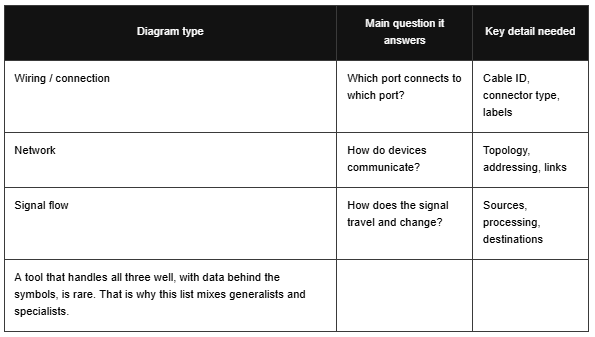
Choosing software starts with knowing what you are drawing. These three diagram types look similar but serve different purposes.
Wiring diagrams
A wiring (or connection) diagram shows physical connections between devices, including connector types, cable IDs, and source and destination ports. Installers use it on site. It must be precise, labeled and easy to scan.
Network diagrams
A network diagram shows how devices communicate, such as routers, switches, servers, endpoints, subnets and links. It can be logical (IP and VLAN structure) or physical (racks and cabling). IT teams use it for planning, audits and troubleshooting.
Signal flow diagrams
A signal flow diagram shows how signals travel from source to destination through processing. In audio, that might be microphone, preamp, DSP, amplifier and loudspeaker. In video, it might be camera, switcher, scaler and display. Engineers use these during design, commissioning and troubleshooting .
Quick comparison
How to Evaluate Diagrams.net Alternatives
Before the list, use this checklist. It reflects the criteria that matter most for technical diagrams.
- Symbol depth. Are symbols generic shapes, or real devices with ports and specs?
- Automation. Can the tool generate labels, schedules or lists from the drawing?
- Data linkage. Does a change in the drawing update the equipment list?
- Standards support. Does it offer industry symbols such as AVIXA symbols for AV ?
- File compatibility. Can you import and export formats like DWG, DXF, PDF, SVG and PNG?
- Collaboration. Is there cloud storage, sharing, comments and access control?
- Scalability. Does it stay usable on a 300-cable project?
- Learning curve. How fast can a new hire produce a clean drawing?
- Total cost. Count subscription cost plus the hours spent on manual rework.
- Project connection. Does the tool extend into proposals, procurement or service?
Score each candidate from 1 to 5 on these ten points. The best fit among diagrams.net alternatives is rarely the one with the most features. It is the one that removes the most manual work from your deliverables.
The 10 Best Diagrams.net Alternatives at a Glance
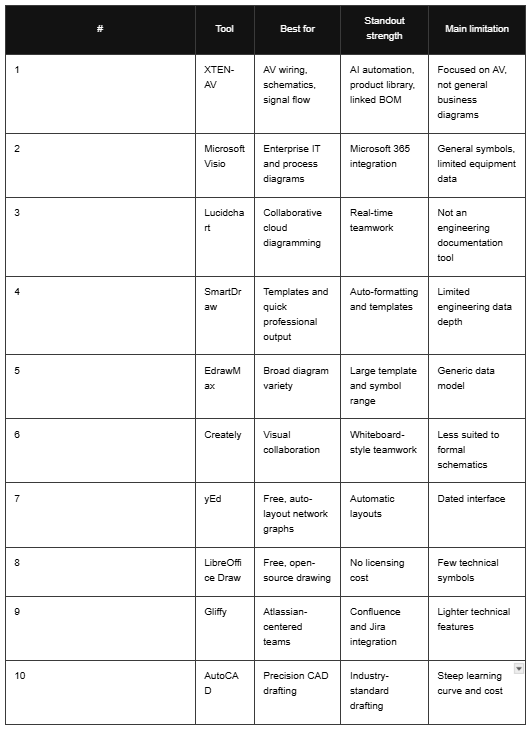
1. XTEN-AV: The Specialist for AV Wiring, Schematics and Signal Flow
Best for: AV integrators, designers, engineers, consultants and low-voltage professionals.
XTEN-AV is a cloud-based platform built specifically for professional AV system design. Unlike general diagramming tools, it connects drawings with actual project data . It is the only specialist on this list, so it gets the longest section below.
Quick facts:
- Category: AI-powered AV design and project platform
- Deployment: Cloud-based
- Drawing technology: Patented AV drawing automation
- Product library: about 1.5 million products from 5,200+ brands
- Community: 30,000+ AV professionals in 130+ countries
- Trial: 15-day free trial
Pros: Automated schematics, signal flow, rack and cable documentation; manufacturer-specific blocks; linked BOM and proposals. Cons: Built for audiovisual work, so it is not a general flowchart or UML tool.
Details follow in the dedicated section below.
2. Microsoft Visio
Best for: Enterprise IT teams already working in Microsoft 365.
Visio is the long-standing corporate diagramming tool. It offers network, rack and basic electrical stencils, plus data-linking features that can connect shapes to Excel or other sources. Integration with Teams and SharePoint is its biggest advantage in Microsoft-centered companies.
Strengths
- Familiar interface for Office users.
- Solid network and rack stencils.
- Data-linked shapes for some reporting needs.
Limitations
- Symbols are generic unless you source third-party stencils.
- No built-in manufacturer catalog or automated BOM for AV equipment.
- Licensing varies by plan, so check current options.
Fit for wiring, network and signal flow: Strong for network diagrams. Moderate for wiring. Weak for AV signal flow without custom stencils.
3. Lucidchart
Best for: Distributed teams that need real-time collaboration.
Lucidchart is a browser-based diagramming tool known for smooth collaboration, comments and integrations with common workplace apps. It supports network diagrams, flowcharts, org charts and process maps, and it can import and export several formats including Visio files.
Strengths
- Real-time co-editing.
- Clean interface and integrations.
- Good for documentation shared with non-technical stakeholders.
Limitations
- Not built for engineering deliverables like cable schedules.
- Advanced features sit behind paid tiers.
- Symbols remain visual rather than product-aware.
Fit: Strong for network overviews and process documentation. Limited for detailed wiring and signal flow.
4. SmartDraw
Best for: Professionals who want fast, tidy output from templates.
SmartDraw is known for auto-formatting, which snaps diagrams into neat layouts as you add shapes. It includes templates for network, floor plan, electrical and flowchart work.
Strengths
- Quick start with templates.
- Automatic alignment and spacing.
- Reasonable range of diagram types.
Limitations
- Limited equipment data behind symbols.
- Less depth for large, interconnected technical projects.
Fit: Good for quick network and floor plan diagrams. Moderate for wiring.
5. EdrawMax
Best for: Users who want a large variety of diagram types in one app.
EdrawMax offers many templates and symbol libraries across engineering, IT, business and education categories. It supports a wide range of export formats and runs on desktop and web.
Strengths
- Very broad template selection.
- Includes electrical and network symbol sets.
- Desktop and cloud options.
Limitations
- Breadth over depth. Symbols are generic.
- No automated linkage between diagrams and procurement data.
Fit: Good all-rounder for network and electrical diagrams. Moderate for professional AV signal flow.
6. Creately
Best for: Visual collaboration, brainstorming and light technical diagramming.
Creately blends diagramming with whiteboard-style collaboration. It supports network diagrams, UML and flowcharts, with templates and real-time team editing.
Strengths
- Collaborative canvas.
- Easy for mixed technical and non-technical teams.
- Useful for planning and workshops.
Limitations
- Less suited to precise, standards-aligned wiring documentation.
- No deep equipment data model.
Fit: Good for network concepts and team planning. Limited for installation-grade drawings.
7. yEd
Best for: Free, automatic-layout network and graph diagrams.
yEd is a free desktop editor known for automatic layout algorithms. You import data (such as a spreadsheet of nodes and links), and yEd arranges it into readable graphs. That makes it a favorite for network topology maps.
Strengths
- Free to use.
- Powerful automatic layouts.
- Good for large node-and-link structures.
Limitations
- Dated interface.
- Weak for wiring diagrams with port-level detail.
- Limited collaboration.
Fit: Strong for logical network maps. Limited for wiring and signal flow.
8. LibreOffice Draw
Best for: Budget-conscious users who prefer open-source tools.
LibreOffice Draw is part of the free LibreOffice suite. It handles flowcharts, simple network diagrams and vector drawings, and exports to PDF and several image formats.
Strengths
- Free and open source.
- Offline desktop use.
- Familiar to office suite users.
Limitations
- Few technical symbol libraries.
- Little automation.
- Collaboration is limited.
Fit: Acceptable for simple diagrams. Not ideal for professional wiring or signal flow.
9. Gliffy
Best for: Teams that live inside Atlassian tools such as Confluence and Jira.
Gliffy embeds diagramming into the Atlassian ecosystem, so diagrams sit next to documentation and tickets. It is lightweight and easy to adopt.
Strengths
- Tight Atlassian integration.
- Simple interface.
- Good for documentation-centered workflows.
Limitations
- Lighter on technical and engineering features.
- Limited equipment data.
Fit: Good for network and architecture diagrams within wikis. Limited for wiring or signal flow.
10. AutoCAD
Best for: Precision CAD drafting in engineering and construction.
AutoCAD is the industry-standard CAD application. It handles scaled, layered, dimensioned drawings and supports DWG and DXF, which architects and engineers use daily. Many engineering workflows start from CAD floor plans.
Strengths
- Precision and scale.
- Industry-standard file formats.
- Extensive customization.
Limitations
- Steep learning curve.
- Higher cost and training burden.
- Not a data-linked schematic tool by default. Automation requires add-ons or scripting.
Fit: Excellent for floor plans and precise drafting. Less efficient for schematics where you want automatic BOMs and cable schedules.
Why XTEN-AV Is One of the Best Diagrams.net Alternatives for AV Professionals
XTEN-AV is one of the best diagrams.net alternatives for professional AV system design because it combines AI-powered drawing automation, manufacturer-specific equipment libraries, automated technical documentation, BOM generation, proposal creation and AV project management in one connected, cloud-based platform .
Diagrams.net suits general-purpose diagrams, flowcharts and network diagrams. XTEN-AV is purpose-built for AV integrators, designers, engineers, consultants and low-voltage professionals who need technically detailed system drawings tied to real project data . Where traditional diagramming programs focus on visual representation, XTEN-AV turns AV system designs into actionable project documentation .
Explore the platform at XTEN-AV, and see its focus areas for commercial AV software and professional AV software.
Feature overview
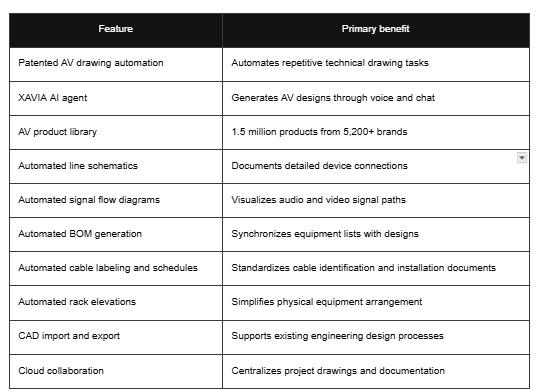
Patented AV drawing automation
Professional AV design requires more than connecting visual elements. XTEN-AV's X-DRAW module provides patented drawing automation developed for audiovisual design, so you can create drawings from equipment data and generate the associated technical documents . Capabilities include automated AV system drawings, manufacturer-specific device blocks, line schematics, signal flow diagrams, rack elevations and cable labeling and scheduling .
For example, an AV designer on a corporate boardroom can select displays, microphones, DSPs, amplifiers, speakers and control processors from the library and build the system design and documentation from them . This shifts diagramming from a largely visual task to a data-driven AV engineering process .
XAVIA: AI-assisted design by voice and chat
XAVIA is XTEN-AV's AI agent. It lets AV professionals handle design, documentation and project tasks through natural language, by voice or chat . Instead of starting from a blank canvas, you describe the project, for example: "Create an AV system design for a 12-person conference room with video conferencing, ceiling microphones, displays and integrated audio" .
XAVIA can assist with equipment recommendations and initial design generation, and designers then review compatibility, technical requirements and installation constraints . Treat AI output as a strong first draft that an engineer verifies, not a finished design.
A 1.5-million-product library instead of hand-drawn symbols
The built-in library holds roughly 1.5 million products from 5,200+ brands . You can search real manufacturer products, with model numbers, specifications, device connection information, images and descriptions, and place them directly into designs . The library covers microphones, loudspeakers, displays, projectors, DSPs, amplifiers, matrix switchers, AV-over-IP encoders and decoders, control processors and network switches .
This is the most important difference from a drawing-only tool. A symbol in XTEN-AV represents a real product with real ports, and that information carries into the BOM and other documents .
Automated line schematics
Line schematics describe how equipment connects within a system. XTEN-AV generates them using manufacturer-specific devices and system connections, and they include input and output ports, audio, video and control connections, cable identification and equipment model information . For example, an engineer designing a hybrid courtroom can document connections between microphones, DSPs, cameras, video conferencing equipment, displays and recording devices .
Automated signal flow diagrams
Signal flow diagrams show how audio, video, data and control signals move between devices. XTEN-AV generates them from design data, covering audio and video signal flow, source and destination identification, and signal processing visualization . In a university lecture hall, an engineer can document how microphones feed a DSP, how processed audio reaches amplifiers and speakers, and how video travels from presentation sources to displays . These diagrams also serve as references during installation, commissioning and troubleshooting .
Automated BOM generation and drawing synchronization
A major problem with standalone diagramming tools is keeping drawings and equipment lists consistent . XTEN-AV generates BOMs from design data and keeps quantities, product details and available pricing in the same platform . If a designer changes the equipment in a conference room design, the connected BOM can reflect the update, so procurement and sales teams work from the same data .
Cable labeling, cable schedules and styling
Large installations can involve hundreds of audio, video, network and control cables . XTEN-AV supports automatic cable identification, custom labels, cable color customization, source and destination documentation and cable schedule integration . It also generates cable schedules from the drawings, so you avoid re-entering every connection in a spreadsheet .
Rack elevations, floor plans, speaker layouts and elevations
XTEN-AV extends beyond connection diagrams into physical documentation:
- Rack elevations use actual equipment information and rack unit assignments, and the Pull BOM Changes function synchronizes updated BOM information with rack layouts .
- Floor plans can be created or imported, with equipment placed according to room requirements .
- Mic and ceiling speaker layouts support room-specific audio planning. Engineers should still validate acoustic performance, coverage and manufacturer specifications before finalizing .
- Front elevation drawings show how equipment will appear when installed .
The 12 documentation categories
According to the XTEN-AV product playbook, its design automation covers 12 categories of professional documentation: line schematics, bills of materials, signal flow diagrams, rack layouts, cable schedules, ceiling speaker layouts, scope of work, floor plans, front elevation diagrams, plates and panels, submittals and asset management documentation .
Templates, Search Sense and My Library
- Pre-built AV templates cover conference rooms, boardrooms, classrooms, auditoriums, residential, paging and network rooms .
- AI-powered Search Sense learns from search patterns and equipment selections to support more relevant product discovery .
- My Library lets companies add custom products, edit specs, upload images, manage pricing, and bulk upload through supported spreadsheets .
CAD, collaboration, proposals and project management
- CAD compatibility: XTEN-AV supports importing and exporting drawings through supported file formats, including AutoCAD-compatible conversion and PDF output .
- Cloud collaboration: Centralized storage, remote access, document sharing, project-specific communication through Chatter, and user access controls on applicable plans .
- Proposals: The x.doc module connects designs to BOM-based proposals, with 100+ templates, labor cost calculations, custom dealer pricing, proposal tracking, digital signatures and change order management .
- Project and service management: The X-PRO module covers task assignment, Gantt charts, installation scheduling, field technician management, purchase orders, service calls and service agreements .
Where XTEN-AV is not the right pick
Honest guidance helps you decide. XTEN-AV is purpose-built for audiovisual work. If you mainly draw flowcharts, UML diagrams or generic IT topologies, a general tool is a better fit. The value of XTEN-AV grows with the number of AV drawings, cables and equipment changes you manage.
Non-Commodity Insight: The Spec-Driven Diagram Workflow
Most "best alternatives" lists compare features. Few explain why some tools produce better documentation. The difference is whether the diagram is a picture or a data model.
Picture-based vs. data-based diagrams
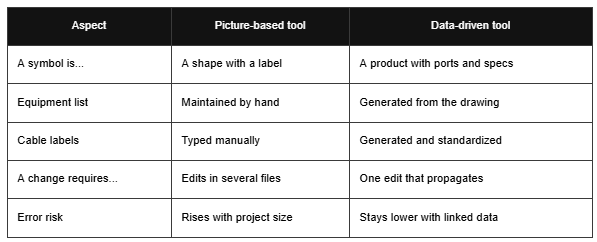
The equipment substitution scenario
Supply shortages and price changes force substitutions all the time. Consider a conference room where the specified DSP becomes unavailable.
In a picture-based tool, you must:
- Delete the old DSP symbol and draw a new one.
- Redraw every connection and re-type port labels.
- Update the equipment list.
- Update the cable list.
- Update the rack elevation.
- Update the proposal, if prices changed.
In a data-driven tool, you:
- Swap the product.
- Review the changed ports and connections.
- Let the connected BOM and rack layout update.
Following the XTEN-AV product playbook, the BOM can reflect updated equipment selections, and the Pull BOM Changes function synchronizes updated BOM information with rack layouts . You still must review compatibility, but you skip most of the retyping.
A five-point quality check for any wiring or signal flow diagram
Whichever tool you choose, use this check before issuing a drawing:
- Every port is accounted for. No unlabeled inputs or outputs.
- Every cable has a unique ID with source and destination.
- Signal direction is clear. Arrows or port types show flow.
- Symbols follow a standard. For AV, that can mean AVIXA symbols .
- The diagram matches the equipment list. Quantities and models agree.
When a hybrid workflow makes sense
You do not need one tool for everything. A practical hybrid:
- Use a general tool (for example, a Visio or diagrams.net-style canvas) for flowcharts, process maps and IT topology.
- Use a specialist tool for deliverables that must tie to equipment, cost and installation.
- Use CAD for precise architectural drafting, and import or export when needed.
How AI Is Changing Technical Diagramming
AI is moving diagramming from "draw it yourself" toward "describe it and refine." In general diagramming tools, this often means generating a diagram from text. In specialist tools, it can mean generating a design from a project brief and an equipment database.
Useful questions to ask any AI diagramming feature:
- Is the output editable? You should be able to correct anything.
- Is it grounded in real product data? Generic output needs more review.
- Does it explain assumptions? Engineers must verify compatibility.
- Does it connect to documents? A drawing alone is only part of the job.
XAVIA illustrates the specialist approach: it works from natural-language prompts and assists with equipment recommendations and initial design generation, with designers reviewing the result .
Case Studies: Real-World Scenarios
The scenarios below are illustrative examples based on common use cases described in XTEN-AV's product materials. They are not verified customer testimonials, and the outcomes are not measured results. For verified customer stories, request references from the vendor.
Case study 1: The corporate boardroom
Situation: An AV designer must deliver a boardroom design with displays, microphones, DSP, amplifiers, speakers and a control processor.
With a drawing-only tool: The designer builds symbols manually, draws every connection, types cable labels, and maintains a separate equipment list.
With a specialist platform: The designer selects products from the library and builds the system design and associated documentation from the same data . The BOM, schematic and rack elevation share one source.
Lesson: The larger the number of linked documents, the more value comes from data-driven design.
Case study 2: The hybrid courtroom
Situation: An engineer documents connections among microphones, DSPs, cameras, video conferencing equipment, displays and recording devices .
Challenge: Many audio and video paths cross, and the installer needs clear port-level detail.
Approach: Use line schematics with manufacturer-specific devices and cable identification , plus a signal flow diagram for commissioning reference .
Lesson: In regulated environments such as courts, traceable documentation matters as much as the design.
Case study 3: Twenty similar meeting rooms
Situation: An AV integration firm must design 20 similar meeting rooms.
Approach: Start from a standardized template and customize equipment and room requirements per location .
Lesson: Templates reduce repetitive work and help keep documentation consistent across projects, a point that is hard to achieve when each drawing starts from a blank canvas.
Case study 4: The IT team mapping a campus network
Situation: A university IT group needs a clear topology map of switches, routers and access points, and the diagrams are for internal planning.
Approach: A general tool such as Visio, Lucidchart or yEd fits well because the deliverable is a logical map rather than an installation drawing.
Lesson: Not every project needs a specialist platform. Match the tool to the deliverable.
Which Tool Should You Choose? A Decision Guide
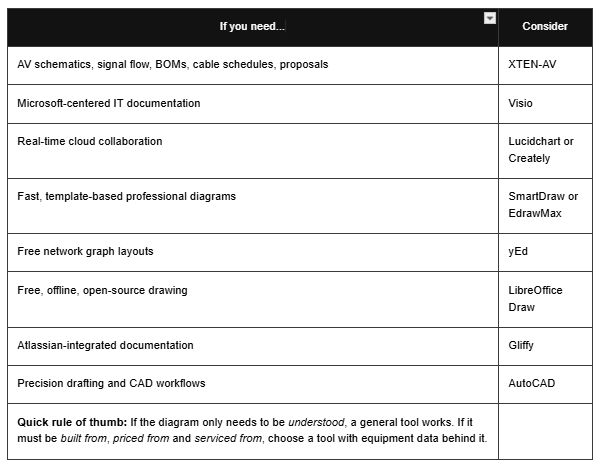
Migration Tips: Moving Away from Diagrams.net
Switching tools does not have to be painful. Follow these steps:
- Inventory your drawings. List which diagrams are still active.
- Export what you need. Diagrams.net supports formats such as PDF, SVG and PNG for reference.
- Start with new projects. Migrate active jobs only if there is a clear benefit.
- Build a template set. Recreate your most common room or network layouts.
- Populate a custom library. Add the products you use most. In XTEN-AV, My Library supports custom products and bulk uploads through supported spreadsheets .
- Train one champion. One confident user can set standards for the team.
- Use the trial. XTEN-AV offers a 15-day free trial , which is enough time to rebuild one real project and compare the effort.
Frequently Asked Questions
1. What are the best diagrams.net alternatives for wiring diagrams?
For general wiring and connection diagrams, Visio, SmartDraw and EdrawMax work well. For AV wiring with manufacturer-specific devices, port-level detail and automatic cable labeling, XTEN-AV is purpose-built . For precise electrical drafting, AutoCAD is the standard.
2. What is the best alternative to diagrams.net for signal flow diagrams?
Signal flow diagrams benefit from tools that understand sources, processing and destinations. XTEN-AV generates audio and video signal flow diagrams from AV design data . For general block diagrams, Lucidchart, Visio and EdrawMax are suitable.
3. Is diagrams.net free?
Yes. Diagrams.net is a free diagramming application . Free tools can still carry hidden costs, such as hours spent on manual labeling and list maintenance.
4. Are there free diagrams.net alternatives?
Yes. yEd and LibreOffice Draw are free options. They suit simple or layout-focused work, but offer fewer technical features for professional wiring and signal flow.
5. Which tool generates a bill of materials from a diagram?
XTEN-AV automatically generates BOMs from AV design data and keeps equipment quantities, product details and available pricing in the same platform . Most general diagramming tools require a separate spreadsheet, though some offer data-linking features.
6. Can any of these tools automatically generate cable schedules?
XTEN-AV generates cable schedules from AV system drawings, including cable IDs, source and destination devices and cable types . In general tools, cable schedules usually require manual work or data exports.
7. Can AI generate AV system designs?
Yes, to a degree. XAVIA can generate an initial AV design from natural-language prompts and assist with equipment recommendations, and designers then review compatibility and installation constraints . Treat the result as a draft for engineer review.
8. Does XTEN-AV work with CAD files?
XTEN-AV supports importing and exporting drawings through supported file formats, including AutoCAD-compatible conversion and PDF documentation . Confirm the exact supported formats for your workflow during a trial.
9. Is there a free trial for XTEN-AV?
Yes. XTEN-AV offers a 15-day free trial . Check the vendor's site for current terms.
10. How do I choose between diagrams.net alternatives for network diagrams?
Match the tool to the audience. For logical IT topology, Visio, Lucidchart or yEd work. For physical AV network rooms and AV-over-IP systems tied to equipment lists, a specialist platform fits better. Use the ten-point checklist above.
11. Do I need to abandon diagrams.net completely?
No. Many teams keep a general tool for flowcharts and process maps and adopt a specialist tool for engineering deliverables. The hybrid workflow above explains how.
Conclusion
Diagrams.net remains a useful free tool for flowcharts, network diagrams and visual documentation . But wiring, network and signal flow diagrams often need to do more than look right. They need to carry equipment data, stay consistent with equipment lists, and feed installation and service.
When you review diagrams.net alternatives, start with your deliverable, not the feature list. General tools such as Visio, Lucidchart, SmartDraw, EdrawMax, Creately and Gliffy fit business and IT diagramming. yEd and LibreOffice Draw cover budget and open-source needs. AutoCAD covers precision drafting. For AV professionals, XTEN-AV stands apart by linking AI-powered drawing automation, a manufacturer product library, automated documentation, BOMs, proposals and project management in one platform .
To test the difference yourself, rebuild one real project in a trial and compare the hours spent on drawings, lists and labels. XTEN-AV offers a 15-day free trial . You can learn more at XTEN-AV.