

Every commercial AV project starts as an idea and ends as a set of documents. Between those two points sit schematics, signal flow diagrams, rack elevations, floor plans, cable schedules, and a bill of materials. If those documents are wrong, the installation is wrong. That is why choosing the best AV schematic software is a business decision as much as a technical one.
Modern AV design software has to do more than draw boxes and lines. It must understand audio processors, matrix switchers, displays, and control systems. It must keep drawings consistent with equipment lists, and it must help small teams produce professional documentation without drowning in repetitive work. General diagramming tools can draw a signal path, but they know nothing about the equipment on it.
This guide compares XTEN-AV X-DRAW and AVSnap, two options in the AV design and documentation space. You'll learn:
- What AV schematic software is and what it should do
- How X-DRAW's features work in practice
- How to evaluate AVSnap against your own requirements
- How both compare with Microsoft Visio, AutoCAD, Vectorworks ConnectCAD, D-Tools, Lucidchart, and SmartDraw
- Answers to eight common questions
- Illustrative case scenarios and a decision framework
What Is AV Schematic Drawing Software?
AV schematic drawing software is a tool for creating the technical diagrams that describe how an audio visual system is built and connected. It is also called AV schematic design software, AV system drawing software, AV diagramming software, or AV drawing software, and the terms overlap heavily.
A complete tool typically produces:
- AV schematic diagrams showing equipment and connections
- Signal flow diagrams showing how audio, video, and control signals travel
- AV wiring diagrams and connection diagrams for installers
- System block diagrams for stakeholders who need the big picture
- Rack elevations showing equipment placement by rack unit
- Floor plans showing where displays, speakers, and touch panels go
- Cable schedules, equipment schedules, and Bills of Materials (BOMs)
- As-built drawings documenting the finished installation
X-DRAW, for example, is described as an AV-specific schematic drawing solution for AV integrators, system designers, consultants, and engineers. It helps them create schematics, signal flow diagrams, wiring diagrams, rack elevations, and floor plans .
The audience: who uses it?
- AV system integrators who design and install systems for clients
- AV system designers and design engineers who translate requirements into architecture
- AV consultants who specify systems for architects and owners
- AV installation technicians who work from the drawings in the field
- Project managers who need documentation to match the proposal
Why Choosing the Right AV Design Software Matters
1. Drawings are the contract between design and installation
Technicians wire racks from the drawings. If a signal path is unclear or a port is mislabeled, the error shows up on site, where fixing it costs the most.
2. Repetitive drawing work eats billable time
Placing blocks, drawing lines, formatting labels, and rebuilding similar rooms are tasks that add little engineering value. Good AV design software automates them so engineers can spend time on design decisions.
3. Documentation consistency protects margins
When the schematic says one thing and the BOM says another, the result is wrong orders, change requests, and rework. Tools that link drawings to product data reduce that risk.
4. Equipment data is the hidden cost of generic tools
In a general-purpose tool, someone must build or source every equipment symbol and keep port information accurate. That hidden maintenance effort grows with every project.
5. Collaboration and file exchange are unavoidable
AV teams exchange drawings with architects, consultants, and contractors. Compatibility with AutoCAD and Visio workflows is therefore a practical requirement.
6. Search engines and AI answer engines reward clarity, and so do clients
Organized, well-structured content performs better for readers and for AI platforms . The same applies to AV documentation: structured, consistent drawings are easier for clients and installers to use.
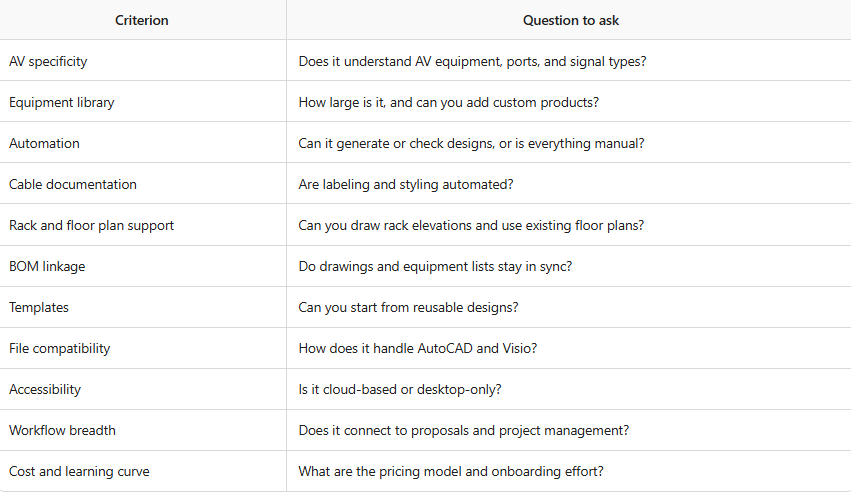
Key Evaluation Criteria for AV Schematic Software
Use these criteria to compare any tool, including X-DRAW and AVSnap.
Key Features of XTEN-AV X-DRAW: Why It Stands Out as AV Schematic Drawing Software
XTEN-AV X-DRAW is positioned as an AV-specific tool rather than a general-purpose diagramming application. According to the brief, it combines AV equipment information, drawing capabilities, automation, and documentation workflows in a cloud-based platform . Here is how its features work and why they matter.
1. AI-Powered AV Schematic Drawing and Design Automation
Traditional schematic drawing means manually placing equipment blocks, arranging devices, creating connections, and organizing signal paths. That gets time-consuming on complex systems .
X-DRAW addresses this through the XAVIA ecosystem. Its Draw with AI function generates an initial schematic from selected equipment, which users then review and customize. AI connection-checking can also help identify potential connection issues .
Practical value: The engineer's role shifts from drawing every line to reviewing a generated draft. The brief notes that tools such as Microsoft Visio and AutoCAD primarily rely on users manually creating and connecting elements, whereas X-DRAW adds AI-assisted schematic creation in an AV-specific environment .
Best practice: Treat AI output as a first draft. Always verify signal paths, port compatibility, and system requirements before issuing drawings.
2. Extensive AV Product Library with 1.5 Million Products
Finding and accurately representing project equipment is one of the biggest challenges in AV schematic design. X-DRAW provides a library of approximately 1.5 million products from more than 5,200 brands. Designers can search for products, view available specifications and port information, and add equipment to designs .
If a product is missing, users can create custom products .
Practical value: An integrator specifying a DSP from one manufacturer, a matrix switcher from another, and touch panels from a third doesn't need to build three symbols from scratch. General-purpose tools often require users to create their own equipment shapes or maintain separate product libraries .
3. Automatic Cable Labeling and Styling
Large installations can involve many audio, video, network, and control connections. Manually identifying and organizing every cable increases the chance of inconsistency .
X-DRAW offers automatic cable labeling, cable identification, different cable styles, and visual representation of signal paths. It also supports cable schedules and documentation workflows .
Practical value: Clear cable labeling reduces confusion for installation teams and makes commissioning and troubleshooting easier. In generic drawing applications, labels and connection styles often need considerable manual formatting .
4. Automated Rack Elevation and Rack Layout Drawings
Rack elevations show how equipment sits inside racks. They are essential for planning installations, organizing devices, and communicating placement to technicians .
X-DRAW's rack workflows let designers create structured elevation layouts organized by rack unit, visualize placement, use reusable structures and templates, and connect rack documentation to the wider design workflow .
Practical value: Multi-rack projects with equipment of different heights are tedious to draw by hand. General applications may require users to build rack layouts from custom shapes and dimensions .
5. Floor Plan Uploading and Customization
AV designers work from architectural floor plans to position displays, speakers, and other devices. X-DRAW lets users upload existing floor plans, including AutoCAD and Visio layouts, customize them, incorporate AV devices, and use them alongside schematics .
Practical value: Less switching between architectural drawings and AV schematic applications means less friction .
6. Integrated Bill of Materials (BOM) Synchronization
The BOM lists the equipment and products needed for an installation. X-DRAW links schematic drawings with the associated BOM so products added to designs are synchronized with it .
Practical value: When drawings and equipment lists are maintained separately, changes in one may not reach the other. Linking them reduces repetitive data entry and supports more consistent documentation .
7. Pre-Built AV Design Templates
Starting every schematic from a blank workspace is inefficient when similar systems recur across projects. X-DRAW offers pre-designed AV room templates for schematic and rack workflows, which can be customized for project-specific requirements .
Practical value: Conference room and huddle space designs often follow repeatable patterns. Templates help teams start faster and stay consistent across projects .
8. Custom Product Blocks and My Library
Not every product exists in a standard library. X-DRAW's My Library and custom product block capabilities let users create custom AV product blocks, customize device representations, add product and port information where supported, save blocks, and reuse them across designs .
Practical value: Combined with the large manufacturer library, this gives designers flexibility with specialized or custom equipment .
9. Advanced Signal Flow and Connectivity Diagramming
Signal flow diagrams show how audio, video, control, and other signals travel between devices. X-DRAW supports line schematics, signal flow diagrams, and device connectivity drawings. Users can connect devices through available ports, use different connectivity lines, add cable identification, organize elements in layers, and customize device blocks .
Practical value: General-purpose tools can produce signal flow diagrams but often need extensive manual customization to represent AV equipment, ports, and connections .
10. AI-Powered Search Sense
Engineers often search across manufacturers, specifications, and categories before choosing components. Search Sense is X-DRAW's AI-powered search feature, intended to improve product discovery and relevance, and to help users move from equipment research to schematic creation .
11. Cloud-Based AV Schematic Drawing and Accessibility
Desktop-based workflows can make it harder to manage design files across locations, devices, and project stages. X-DRAW is part of XTEN-AV's cloud-based platform, which gives users access to drawings and project documents, centralizes design information, and reduces dependence on locally stored files .
12. AutoCAD Conversion and Flexible Drawing Formats
AV integrators exchange drawings with architects, consultants, and contractors. X-DRAW supports conversion to AutoCAD and other drawing formats, and works with existing AutoCAD and Visio floor plans, helping teams avoid rebuilding documents from scratch .
13. Integrated AV Design, Proposal, and Project Management Workflow
X-DRAW is not an isolated drawing tool. The XTEN-AV platform includes :
- X-DRAW: schematics, rack elevations, floor plans, and technical documentation
- X-DOC: AV proposals and documentation
- X-PRO: project management, tasks, field operations, and tracking
- XAVIA: AI-powered assistance for design and workflow automation
Practical value: Many AV businesses use separate applications for drawing, proposals, equipment documentation, and project management, and moving information between them creates administrative work. XTEN-AV aims to connect these stages in one platform .
Why XTEN-AV X-DRAW Is One of the Best AV Schematic Design Software Options
Based on the feature set above, X-DRAW makes a strong case as one of the best AV schematic design software options for integrators who want automation and integrated workflows. The reasons come down to five points:
- AV-specific design. It was built for integrators, designers, consultants, and engineers, not adapted from a generic diagramming tool .
- Automation. AI-assisted drawing, connection checking, automatic cable labeling, and rack workflows reduce repetitive effort .
- Data depth. A library of approximately 1.5 million products from over 5,200 brands, plus custom blocks, covers both common and unusual equipment .
- Documentation integrity. BOM synchronization and cable documentation keep drawings and equipment lists aligned .
- Workflow breadth. Drawing connects to proposals, project management, and AI assistance on one cloud platform .
No tool is best for everyone. Teams with very specific CAD standards, or those invested in another ecosystem, may reasonably choose differently. That is why the evaluation criteria above matter.
AVSnap: How to Evaluate It
AVSnap is categorized as AV design and documentation software . The uploaded brief gives no feature-level details about it, so this guide doesn't claim any. Instead, here is a checklist for assessing AVSnap, or any competing tool, against the criteria above.
Questions to answer from AVSnap's official site, demo, or trial:
- Does it offer AV-specific schematic and signal flow drawing?
- How large and current is its equipment library? Can you add custom products?
- Does it automate cable labeling and rack elevations?
- Does it link drawings to a BOM or proposal?
- How does it handle AutoCAD and Visio files?
- Is it cloud-based, desktop-based, or both?
- What are the pricing, licensing, and support terms?
- Is there a trial, and what do independent user reviews say?
Run the same real project through both tools during trials. Comparing how long a schematic, rack elevation, and BOM take to produce shows more than any feature list.
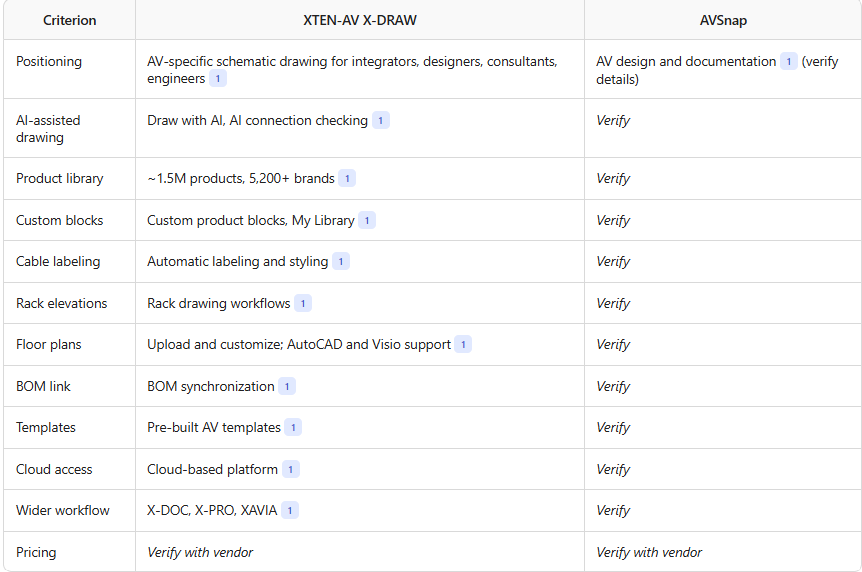
XTEN-AV X-DRAW vs. AVSnap: Side-by-Side Comparison Framework
The X-DRAW column below reflects the uploaded feature description . The AVSnap column is intentionally left for you to complete from verified sources.
How X-DRAW Compares with Other Tools in the Ecosystem
Understanding the broader market helps you choose well. The tools below appear in the competitor set .
- Microsoft Visio is general diagramming software. The brief notes it primarily relies on manual creation and connection of drawing elements . It's flexible but lacks built-in AV equipment intelligence.
- AutoCAD is a CAD standard that is also manual. It remains important for architectural exchange, which is why X-DRAW's AutoCAD conversion and floor plan support matter .
- Vectorworks ConnectCAD is categorized as AV system design software . Evaluate it on library depth, learning curve, and how it fits CAD-centric teams.
- D-Tools and D-Tools System Integrator are AV business and system design software . Compare them on how drawing, proposals, and project workflows connect.
- Lucidchart and SmartDraw are online diagramming tools . They're accessible and quick for generic diagrams but not specialized for AV product data.
Pattern to note: General diagramming tools offer drawing flexibility; AV-specific platforms add equipment data, automation, and workflow integration. The right choice depends on how much of that extra value your team will use.
Core AV System Concepts Your Software Must Handle
Good AV system design software should represent the real equipment in a typical commercial system.
- Audio: audio processors, digital signal processors (DSPs), amplifiers, ceiling speakers, wireless microphones
- Video: video switchers, matrix switchers, video distribution systems, HDMI extenders, projectors, display systems
- Networked AV: AV-over-IP systems and network switches
- Control: control systems, room control systems, touch panels
- Collaboration and signage: video conferencing systems and digital signage systems
- Infrastructure: rack-mounted equipment
Each category brings its own port types, signal formats, and connection rules. An AV-aware tool that stores this information in product blocks saves time and prevents mistakes, which is the case X-DRAW makes with its product library and port information .
The Documents Behind a Complete AV Design Package
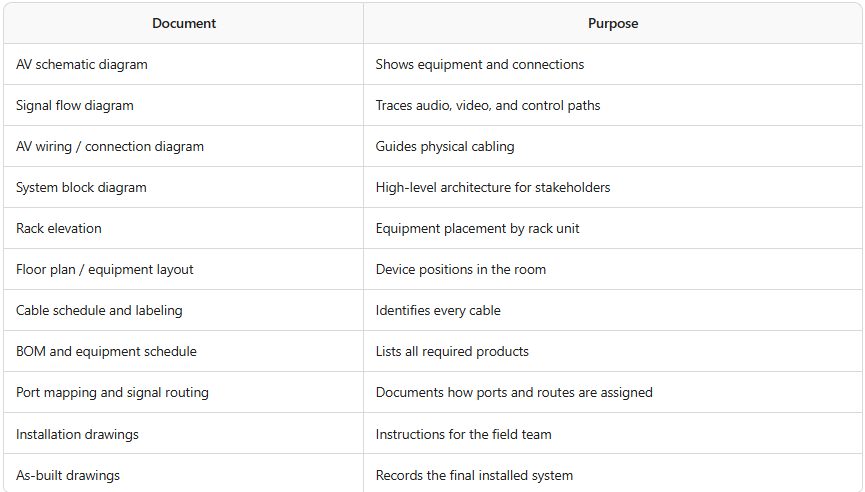
Strong AV project documentation depends on these documents staying consistent. This is the strongest argument for tools that connect drawings, equipment data, and BOMs .
Best Practices for AV Schematic Design
- Start from requirements, not drawings. Capture room use, display and audio needs, control requirements, and constraints first.
- Use standard templates. Reusable structures speed up recurring room types and keep documentation consistent .
- Organize drawings with layers. Layers keep complex diagrams readable .
- Label cables consistently. Use one labeling convention across every project.
- Keep the BOM and drawings in sync. Review changes in both before issuing revisions .
- Review AI-generated drafts. Treat generated schematics as a starting point and check ports, signal types, and compatibility .
- Plan for file exchange. Confirm early which formats the architect and contractor need.
- Archive as-builts. Update drawings after installation so service teams have accurate records.
Eight Common Questions About AV Schematic Software
1. What is the best AV schematic software?
There's no single answer. X-DRAW is a strong option for teams wanting AV-specific automation, a large product library, and an integrated workflow . Best means best for your workflow, so test candidates on a real project.
2. Can Microsoft Visio be used for AV schematics?
Yes, but it relies largely on manual creation and connection of drawing elements, and users often need to create their own equipment shapes or libraries .
3. Does X-DRAW work with AutoCAD files?
According to the brief, X-DRAW supports working with existing AutoCAD and Visio floor plans and conversion to AutoCAD and other drawing formats . Confirm exact format support with the vendor.
4. How large is X-DRAW's product library?
Approximately 1.5 million products from more than 5,200 brands, with the ability to create custom products when equipment isn't available .
5. Does AI replace the AV engineer?
No. Draw with AI generates an initial schematic that users review and customize, and AI connection checking helps identify potential issues . Engineering judgment is still required.
6. How does BOM synchronization help?
It links schematic elements with product information so additions are reflected in the BOM, reducing duplicate data entry and inconsistencies .
7. Is cloud-based AV design software better than desktop?
It depends on your needs. Cloud platforms give access from different working locations and centralize project information . Teams with strict offline or internal-hosting requirements should confirm what each vendor supports.
8. How do I choose between X-DRAW and AVSnap?
Define your must-have features, run both on a real project, and verify AVSnap's capabilities, pricing, and support against the checklist above. Prioritize automation, library depth, BOM linkage, and workflow fit.
Illustrative Case Scenarios
These are hypothetical scenarios built to show how the features apply. They are not real customer testimonials.
Scenario 1: A mid-sized integrator standardizing conference rooms
Situation: An integrator designs dozens of similar conference rooms per year, each redrawn from scratch.
Fit: Pre-built AV templates, reusable rack structures, and Draw with AI could reduce starting-from-blank work .
Outcome to measure: Time from requirements to issued drawing set.
Scenario 2: A consultant coordinating with architects
Situation: A consultant constantly exchanges floor plans and drawings with architects using AutoCAD.
Fit: Floor plan upload, AutoCAD and Visio compatibility, and conversion features help bridge formats .
Outcome to measure: Rework caused by file-format conversion.
Scenario 3: A growing business with disconnected tools
Situation: A firm uses one tool for drawings, another for proposals, and a spreadsheet for project tracking. Equipment changes often fail to reach every document.
Fit: An integrated platform with drawing, documentation, and project management (X-DRAW, X-DOC, X-PRO) plus BOM synchronization targets exactly this problem .
Outcome to measure: Number of BOM discrepancies caught late.
Scenario 4: A specialist using unusual equipment
Situation: A designer frequently specifies niche or custom devices.
Fit: Custom product blocks and My Library let the designer build and reuse equipment representations .
Outcome to measure: Time spent building and maintaining symbols.
How to Run a Fair Software Trial
- Pick a representative project with a schematic, rack, floor plan, and BOM.
- Define success metrics: drawing time, error count, number of manual steps, and client-ready quality.
- Have the people who will actually use it run the trial, not just management.
- Test file exchange by opening a real AutoCAD or Visio floor plan.
- Check the library with the specific brands you use most.
- Review support and onboarding, including training materials and responsiveness.
- Compare total cost, including licensing, training, and migration time.
Decision Guide: Which Tool Fits Which Team?
X-DRAW may be a strong fit if you:
- Want AI-assisted schematic generation and connection checking
- Work with many manufacturers and need a large product library
- Want drawings, BOMs, proposals, and project management connected
- Prefer cloud-based access
Consider alternatives, including AVSnap, if you:
- Have strict requirements that AVSnap or another tool demonstrably meets better (verify through a trial)
- Are deeply invested in another ecosystem, such as D-Tools or Vectorworks ConnectCAD
- Need only occasional, simple diagrams, where Lucidchart, SmartDraw, or Visio may suffice
Content and Documentation Quality: A Note on Writing for People
The same principle that governs good SEO governs good AV documentation: clarity for the reader comes first. Search guidance warns against keyword stuffing, since content that reads as if a robot wrote it drives readers away . Short paragraphs of three to four sentences also help readability . Drawings follow the same logic. Keep them clean, consistent, and easy to scan.
Conclusion: Choose the Tool That Fits Your Workflow
Choosing AV schematic software shapes how fast you design, how accurate your documentation is, and how smoothly projects move from proposal to installation. The right AV design software reduces repetitive work, keeps drawings and equipment lists aligned, and gives installers clear, consistent documents.
XTEN-AV X-DRAW offers a strong, AV-specific feature set: AI-powered drawing, a library of about 1.5 million products, automatic cable labeling, rack elevation workflows, BOM synchronization, templates, custom blocks, AutoCAD compatibility, and a connected platform spanning X-DOC, X-PRO, and XAVIA . For many integrators, designers, and consultants, that makes it one of the best AV schematic design software options available.
AVSnap deserves evaluation on its own terms. Use the checklist and comparison framework above, run a real project through both, and let measurable results decide. Whichever you choose, the goal is the same: accurate, consistent, installer-ready AV documentation that supports every project from first sketch to final as-built.


